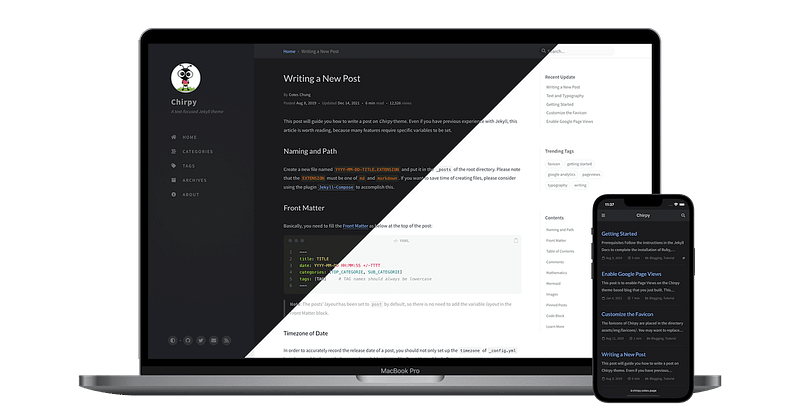
Free Automated KB/Doc/Blog Site w/SSO via Azure SWA
How to build, run and host a secure and private/public website for free with SSO for a knowledge base, documentation site, or blog.
This guide uses:
- Jekyll with the Chirpy theme
- GitHub Actions for CI/CD
- Azure Static Web Apps for hosting and authentication via Azure AD SSO
What You’ll Achieve
- A free static website (for documentation, blogs, or KBs)
- A custom HTTPS domain such as docs.company.com
- SSO authentication with user/group access control
- Automated deployment and build pipeline using GitHub Actions
Why This Approach
Most collaborative documentation platforms — like Confluence, Notion, and GitBook — charge per-user fees and often lack affordable SSO.
For example, GitBook’s SSO-enabled plans cost$250+/month per site, plus $12+ per user.
This solution provides an enterprise-grade, cost-effective, and private alternative, ideal for internal or semi-public documentation sites. It combines modern CI/CD automation with organization-based SSO security — all while keeping costs near zero (or $9/month if SSO is required).
Prerequisites
- GitHub account
- Azure account with permissions to create Static Web Apps and App Registrations
- Basic understanding of Jekyll or static site generation
Step 1: Prepare Jekyll and Repository
Use the Chirpy Starter Template:
- On GitHub, click Use this template → create a new repo (public or private).
Name it after your target domain (e.g.,docs.company.com).
Local Jekyll Installation (Optional but Recommended)
You can run Jekyll locally to test before deployment.
- Follow the Jekyll Installation Docs or Chirpy’s Getting Started Guide.
- In your project directory, run
bundle exec jekyll serve. - Open http://localhost:4000 to preview the site and troubleshoot issues.
Step 2: Create an Azure Static Web App
- In Azure Portal, search for Static Web Apps → Create.
- Choose your resource group and name (e.g.,
docs.company.com). - Plan type:
Free — no SSO
Standard ($9/mo) — enables SSO - Deployment source: GitHub
Connect to your GitHub account
Select Organization, Repository, and Branch (main) - Build preset: Custom
- App location:
/
App artifact location:_site - Deployment configuration: Keep Deployment token selected.
- Click Review + Create.
After deployment, Azure will auto-create a file named azure-static-web-apps-xxx.yml and add a deployment secret to GitHub.
The first deployment will fail - this is expected and will be fixed in later steps.
Step 3: Create an Azure App Registration (for SSO)
An App Registration enables authentication, secrets, and redirect URIs.
- In Azure AD, create a new App Registration (e.g.,
docs.company.com). - Choose Single tenant.
- Add redirect URIs:
https://<swa-app-name>.azurestaticapps.net/.auth/login/aad/callback
https://docs.company.com/.auth/login/aad/callback - Under Branding & Properties, set the homepage to
https://docs.company.com - Under Authentication, enable ID tokens (used for implicit and hybrid flows).
- Under Certificates & Secrets, create a new client secret → copy the secret value.
- Under API permissions, add Microsoft Graph → User.Read, then Grant admin consent.
- In your Static Web App → Settings → Environment variables, add:
AZURE_CLIENT_SECRET= copied secret value - Copy the Client ID from your App Registration, and add to the same section:
AZURE_CLIENT_ID= your client ID
Add the staticwebapp.config.json File
Next, add a configuration file to the root of your repository (same level as your _config.yml and _posts/ folders) named staticwebapp.config.json.
This file configures Azure AD authentication and access rules for your static site.
{
  "auth": {
    "identityProviders": {
      "azureActiveDirectory": {
        "registration": {
          "openIdIssuer": "https://login.microsoftonline.com/<TENANT_ID>/v2.0",
          "clientIdSettingName": "AZURE_CLIENT_ID",
          "clientSecretSettingName": "AZURE_CLIENT_SECRET"
        }
      }
    }
  },
  "routes": [
    {
      "route": "/*",
      "allowedRoles": ["authenticated"]
    }
  ],
  "responseOverrides": {
    "401": {
      "statusCode": 302,
      "redirect": "/.auth/login/aad"
    }
  }
}
💡 Tip: This file tells Azure Static Web Apps to:
Require Azure AD authentication (allowedRoles: ["authenticated"])
Redirect unauthenticated users to Microsoft login
Use your app’s registered Azure AD tenant, client ID, and secret values from environment variables.
Commit and push this file to the main branch — it will take effect on the next deployment.
Step 4: Configure CI/CD and Automation
- Clone your GitHub repo locally.
- Delete the non-Azure workflow YAML file in
.github/workflows/. - Open
_config.ymland update:url: “https://<app-name>.azurestaticapps.net” - Adjust site metadata (timezone, title, tagline, description, GitHub username, etc.).
Update Azure Workflow YAML
Edit the file named azure-static-web-apps-<app-name>.yml with the following content:
name: Azure Static Web Apps CI/CD

on:
  push:
    branches:
      - main
  pull_request:
    types: [opened, synchronize, reopened, closed]
    branches:
      - main

jobs:
  build_and_deploy_job:
    if: github.event_name == 'push' || (github.event_name == 'pull_request' && github.event.action != 'closed')
    runs-on: ubuntu-latest
    steps:
      - uses: actions/checkout@v3
        with:
          submodules: true
          lfs: false
      - name: Set up Ruby
        uses: ruby/setup-ruby@v1
        with:
          ruby-version: 3.1
      - name: Install dependencies
        run: bundle install
      - name: Build the Jekyll site
        run: JEKYLL_ENV=production bundle exec jekyll build
      - name: Upload built site as artifact
        uses: actions/upload-artifact@v4
        with:
          name: built-site
          path: _site
      - name: Deploy
        uses: Azure/static-web-apps-deploy@v1
        with:
          azure_static_web_apps_api_token: ${{ secrets.AZURE_STATIC_WEB_APPS_API_TOKEN_APP_NAME }}
          repo_token: ${{ secrets.GITHUB_TOKEN }}
          action: "upload"
          app_location: "_site"
          output_location: "/"
          skip_app_build: true

  close_pull_request_job:
    if: github.event_name == 'pull_request' && github.event.action == 'closed'
    runs-on: ubuntu-latest
    name: Close Pull Request Job
    steps:
      - name: Close Pull Request
        id: closepullrequest
        uses: Azure/static-web-apps-deploy@v1
        with:
          azure_static_web_apps_api_token: ${{ secrets.AZURE_STATIC_WEB_APPS_API_TOKEN_APP_NAME }}
          app_location: "_site"
          action: "close"
Note: Replace AZURE_STATIC_WEB_APPS_API_TOKEN_APP_NAME with the actual GitHub secret name created by Azure.- Commit and push to
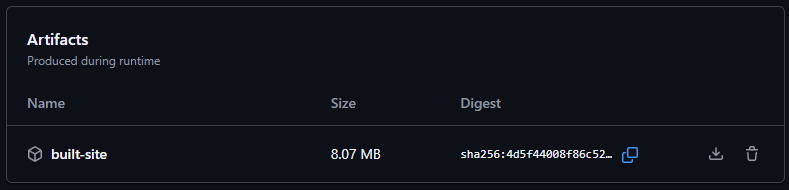
main. This triggers a CI/CD build - it should now complete successfully. - Optional: The added step
actions/upload-artifact@v4lets you download and verify the built_sitecontent.
Step 5: Configure Custom Domain
- In Azure → Static Web App → Settings → Custom Domains.
- Select Custom domain on other DNS.
- Enter your domain (e.g.,
docs.company.com) → Next. - Copy the generated CNAME value.
- In your DNS provider (e.g., GoDaddy, Cloudflare), add a CNAME record:
Name:docs
Value: (paste Azure-provided value)
Once the record propagates, your domain should automatically use HTTPS.
Step 6: Restrict Access with SSO Users/Groups
- In Azure AD → Enterprise Applications → select your app (e.g.,
docs.company.com). - Under Properties, enable Assignment required.
- Under Users and groups, assign the specific users and/or groups allowed access.
- Test in an incognito browser:
Visithttps://docs.company.com
You should be prompted to sign in via Microsoft
Only assigned users should gain access
Step 7: Customize App Logo and MyApps Visibility
- In either Enterprise Application or App Registration, upload your desired app logo.
- Under Enterprise Application → Properties, enable Visible to users.
Your custom site will now appear in the Azure MyApps portal for assigned users.
Conclusion
You now have a fully functional, automated, and secure documentation or blog site hosted on Azure Static Web Apps, built with Jekyll Chirpy, and secured through Azure AD SSO.
This setup offers:
- Zero hosting cost for public access or internal use
- Seamless CI/CD integration through GitHub Actions
- Enterprise-grade security without expensive SaaS subscriptions